
ADDING WIDGETS TO YOUR SCREEN
Step ONE
Login to your Elfsight account and select Create Widget
Step TWO
The video below shows creating a Photo Gallery Widget
Step THREE
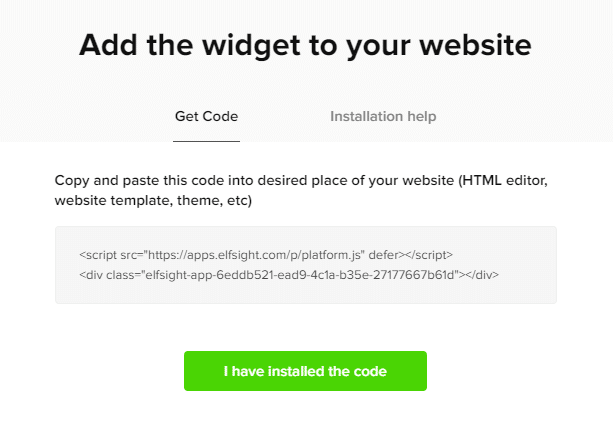
When you click SAVE after you have completed your gallery you will be shown the code below
Step FOUR
Copy the highlighted part of the link shown below
<script src=”https://apps.elfsight.com/p/platform.js” defer></script>
<div class=”elfsight-app-6eddb521-ead9-4c1a-b35e-27177667b61d“></div>
Step FIVE
Simply add this to the end of the weblink shown below also highlighted
https://apps.elfsight.com/widget/6eddb521-ead9-4c1a-b35e-27177667b61d
Step SIX
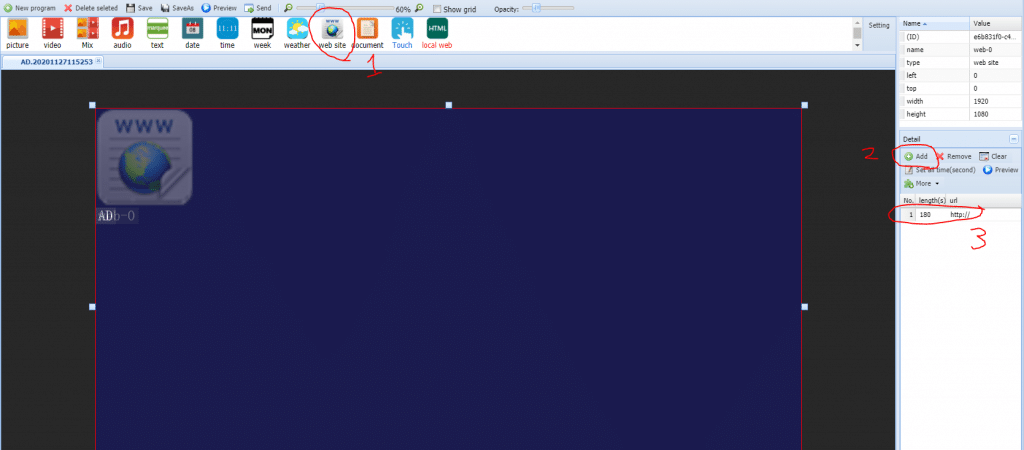
Login to your VDH cloud control account, add a WEB SITE module, then click the ADD button on the right hand side and paste the code shown above
NOTES
Before creating your gallery or widget decide if it will be full screen or partial screen so you can set the correct size (ie. 1080×1920 for full screen or say 1080×1080 for a square gallery on part of the screen only. When adding your website module as shown above then set the size of this to match so the Cloud Control doesn’t stretch or distort your content.